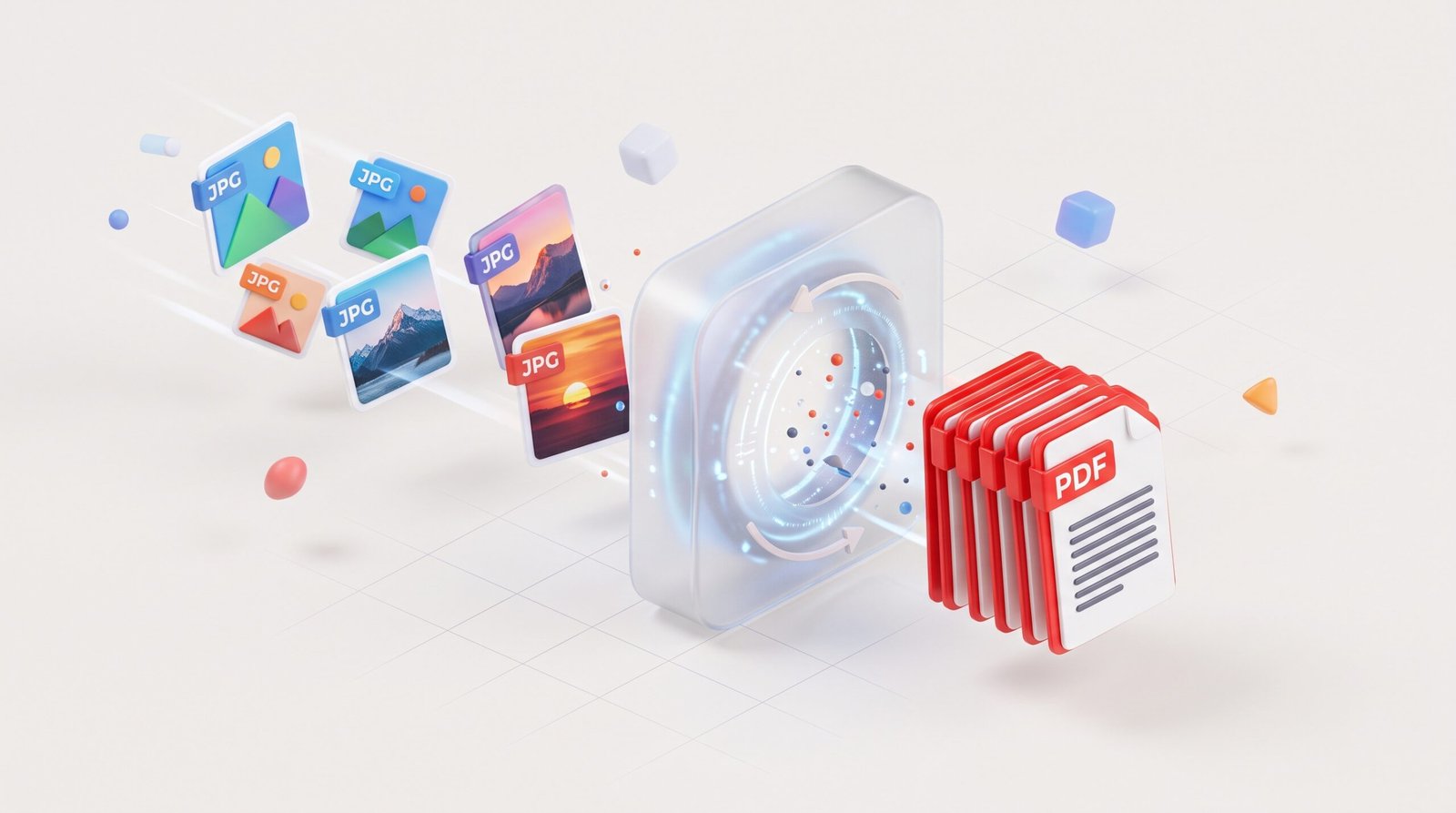
JPG to PDF Converter
Convert JPG, JPEG & PNG images into a clean PDF document online for free
Merge multiple photos, scans, and graphic files into one polished PDF file. Zero file size restrictions, no server uploads, and no sign-up required.
Your PDF is Ready!
0 images • PDF Size: 0 MB
Why Convert JPG to PDF?
While JPG and PNG files are widely loved for photos, sharing hundreds of loose image files can be clumsy and inefficient. When you convert JPG to PDF, you merge multiple images into one clean, standardized digital document. Whether you need to file tax receipts, compile portfolio photos, share lecture notes, or submit homework assignments, a consolidated PDF ensures that your document looks exactly as intended across Windows, macOS, iOS, Android, and Linux systems.
🔒 100% Client-Side Privacy: Most online converters upload your personal photos and sensitive receipts to remote servers. This free tool processes everything locally right in your browser via modern WebAssembly and JavaScript technologies. Your files never touch a remote cloud server.
Key Features of Our Free JPG to PDF Converter
Instant Local Processing
No waiting in cloud upload queues. All conversions execute right inside your device CPU/GPU in seconds.
Unmatched Data Security
Bank statements, medical records, and legal IDs remain safe on your hard drive without server exposure.
Drag & Drop Reordering
Easily arrange the exact page order before generating your final document using our visual list handle.
Custom Page Dimensions
Choose between standard international A4, US Letter, US Legal, A3, or retain original image aspect ratios.
Compression Control
Switch between High, Medium, and Low quality to balance sharp clarity with optimized email-ready file sizes.
Free With No Watermarks
Enjoy clean, professional PDF downloads without annoying branding stamps, page caps, or required registrations.
How to Convert JPG to PDF Free in 4 Easy Steps
Select Images
Click “Choose Images” or drop your JPG, JPEG, or PNG images directly into the upload box.
Arrange Page Order
Drag images up or down to set your desired reading sequence. Delete unwanted shots with one click.
Configure Settings
Pick page size (A4, Letter), margins, orientation (Auto/Portrait/Landscape), and quality profile.
Save & Download
Click “Convert JPG to PDF”. Your download triggers automatically once rendering is complete.
JPG vs. PDF: When Should You Convert?
Deciding whether to distribute your files as standalone images or as a consolidated PDF? Here is an overview comparing the strengths of both formats:
| Criteria | JPG / JPEG Image | PDF Document |
|---|---|---|
| Multi-Page Handling | Single image per file; difficult to manage in large batches. | Combines dozens or hundreds of pages into a single neat file. |
| Print Accuracy | Dimensions vary based on viewer zoom and screen PPI. | Strictly adheres to standard paper measurements (A4, Letter). |
| Email & Messaging | Inbox clutter with dozens of detached attachments. | One single, portable attachment that opens anywhere. |
| Security & Encryption | No native password protection or signing. | Supports digital signatures, read-only permissions, and locks. |
| Visual Integrity | Compression artifacts can compound over repeated edits. | Image raster data is encapsulated losslessly within the container. |
Common Use Cases for Converting JPG to PDF
- Official Applications & Visas: Government portals often demand single multi-page PDF files containing passport scans, identity cards, and utility proofs.
- Expense Reports & Bookkeeping: Snap photos of physical receipts with your mobile camera and stitch them into a chronological expense report for accounting.
- College Coursework & Assignments: Convert photos of handwritten math proofs, research diagrams, and handwritten notes into submission-ready homework PDFs.
- Creative Portfolios & Lookbooks: Assemble high-res graphic design mockups, sketches, and art into a clean flip-through deck for prospective clients.
- Real Estate & Legal Records: Compile architectural blueprints, property survey photos, and notarized affidavits into a single archive.
Tips to Get the Best Results When You Convert JPG to PDF
- Choose “Auto” Orientation: When you have a mixture of tall portrait photos and wide landscape camera snapshots, the “Auto” setting automatically checks each picture’s aspect ratio and adjusts each PDF page independently to avoid awkward black bars.
- Select the Right Page Fit: Use Fit to Page if you want to safeguard your entire image without accidental cropping. Use Fill Entire Page only when you want borderless magazine-style layouts and don’t mind small edge trims.
- Optimize File Size for Email: If your combined PDF exceeds 20 MB (the typical attachment ceiling for Gmail or Outlook), toggle the Quality setting to Medium or Low. This leverages smart canvas bicubic resampling to shrink megabytes while maintaining legible text.
- Check White Margins: For printed contracts and handouts, use Small (20 pt) or Medium (40 pt) margins so the physical printer feed will not clip text near the page edges.
Frequently Asked Questions
Yes, this tool is 100% free with no hidden charges, premium tiers, watermarks, or credit card requirements. You can convert as many JPG and PNG images as you need without restrictions.
No. Your privacy is paramount. Unlike conventional converters that send your documents to a remote server, our tool executes entirely inside your client browser sandbox using pdf-lib. No external server ever inspects, stores, or sees your images.
Yes. The tool seamlessly accepts JPG, JPEG, and PNG images. You can even mix formats simultaneously within the same document (for example, combining three JPG photos with two PNG screenshots).
There is no hard limit on the number of images you can merge. Because the processing occurs locally, your computer or mobile phone memory (RAM) is the only limiting factor. Merging 20 to 100 images works effortlessly on modern devices.
Yes. Once your images are selected, they will appear in an interactive list. Grab the drag handle (☰) on any item to slide it up or down into the exact sequence you want.
When you select the “High” quality setting, your images are embedded into the PDF container with original pixels intact. If you need a smaller file size for web upload or email, choosing “Medium” or “Low” will gently optimize the dimensions.
Yes. The interface is engineered with a responsive design that functions smoothly on mobile browsers like Safari, Chrome, Samsung Internet, and Firefox. You can take live photos or choose them from your phone gallery.
The converter supports standard international A4, US Letter, US Legal, large-format A3, and an “Original Image Size” preset that automatically sizes every page to wrap around the exact pixel geometry of each photo.