You’ve probably met the message. “File too large.”
It shows up at the worst possible moment. The assignment is due in twenty minutes, the job portal wants everything in one PDF under 2 MB, and your file is sitting there at 11 MB, refusing to move. So you stare at it. The document is only six pages long. How can six pages weigh eleven megabytes?
Good question. It has a boring answer, which in our experience is usually the true one.
Why PDFs get so fat
Most of the time, it’s the pictures.
A scanned page isn’t really text to your computer. It’s a photograph, one big photo per page, wrapped up inside the PDF. Phone scanner apps do exactly the same thing: scan a two-page form and the app quietly builds you a file heavier than a song. Add a photo of your ID card, a couple of screenshots, maybe a signature page, and it just keeps growing.
Typed words, on the other hand, weigh almost nothing. A page of text barely registers. That’s how a 40-page typed report can end up smaller than a 3-page scanned form, nobody believes it until they see it happen to their own file.
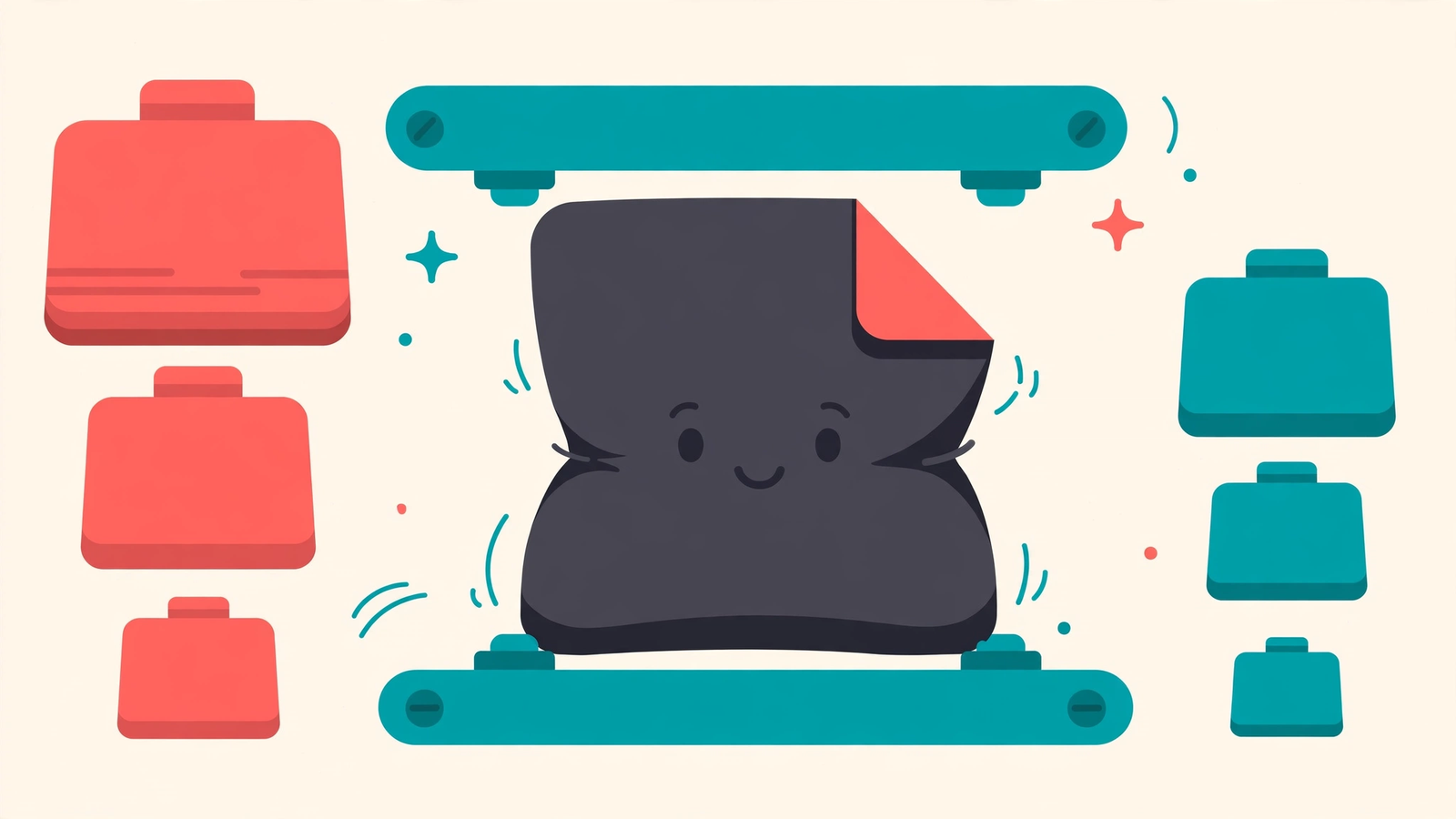
Once you know the weight is hiding in the images, compression stops sounding scary. You’re not squeezing the words. You’re trimming the fat from the pictures.
How to compress a PDF on PDFQuora
We made the Compress PDF tool for exactly this situation: a big file, a strict size limit, and not much patience left. It runs right in your browser, so there’s nothing to install, and it works the same way on a phone, a tablet or a computer.
Here’s the whole process:
- Open the tool and hit the upload button (or drag the file in, if you’re on a computer).
- Pick the PDF from your files or gallery.
- Pick a preset (Extreme, Recommended, or Low), then wait a few seconds.
- Download the smaller PDF, and open it once before you send it anywhere.
No account. No signup form asking for your life story. No watermark stamped over your pages at the end. And it doesn’t cost anything.
One small habit worth forming: keep the original file somewhere safe and always compress a copy. Nine times out of ten the result is exactly what you wanted. On the tenth, you’ll be glad the untouched version is still sitting in your downloads folder.
Will the quality suffer?
This is the part everyone actually cares about, so let’s be straight about it.
For reading on a screen, which is where most PDFs spend their whole lives, you won’t notice any difference. Your text stays crisp, because text was never the problem. The photos get lighter rather than uglier, because compression mostly throws away the excess baggage inside an image, not the detail your eyes actually use.
Print is the one exception. If you’re about to print something large and glossy, keep the original for the printer and use the compressed copy for emailing and uploading. Two versions, two different jobs. Simple.
And do check the result. Open the file, zoom in to 100%, and look at the smallest text on the page. Ten seconds of checking beats finding out from the person you sent it to.
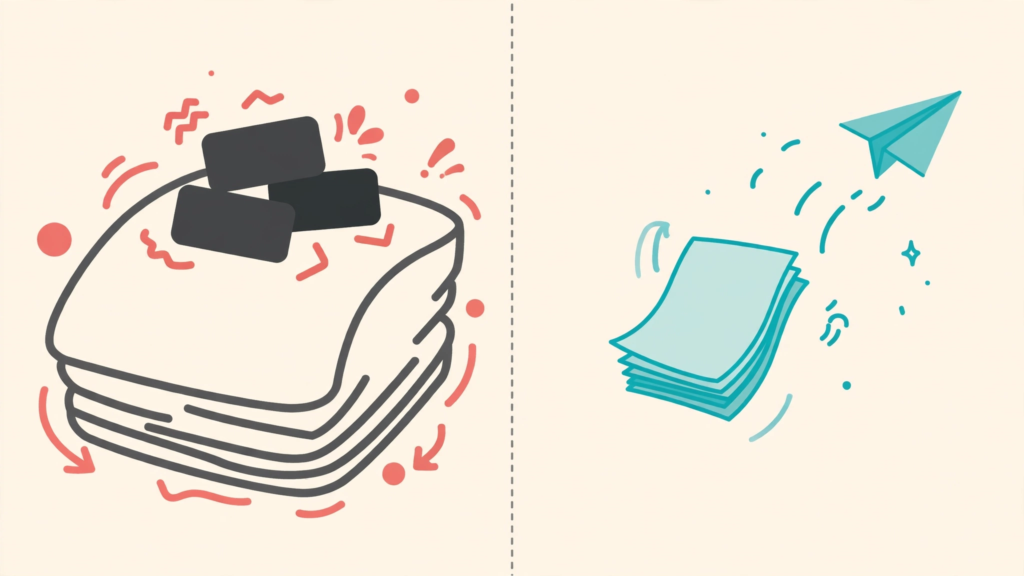
Before
A six-page PDF weighing 11 MB, too large for a job portal that wanted everything in one file under 2 MB
After
The same file compressed in a few seconds, text still crisp, and the original kept safe
Things we find ourselves saying a lot
Compress once, starting from the original. Running a file through a compressor three times is like photocopying a photocopy, every round shaves a little more life off the images. If the first result isn’t small enough, go back to the original and start fresh, not from the already-squeezed copy.
Check the limit before you begin. Every portal, inbox and application form seems to have picked a different number: 2 MB here, 5 MB there, 25 MB somewhere else. Knowing your target tells you straight away whether you’ve squeezed enough.
Don’t expect miracles from a text-only file. If your PDF is already lean, there’s barely anything to remove, and a modest drop is all you’ll get. That’s not the tool failing. That’s just how the file is built.
And if you’re uploading something huge on a wobbly mobile connection, give it a moment. The slow part is almost always the upload, not the compressing. Wi-Fi helps. Patience helps more.
Quick answers
Is it really free?
Yes. Free to use, no signup, and no watermark on the file you download.
Does it work on a phone?
That’s honestly how most people use it. The tool opens in your mobile browser and happily takes files straight from your gallery or downloads folder.
My file is mostly scanned pages. Will it shrink much?
Probably more than you’d expect. Scanned PDFs carry the biggest images, so they’re the best-case scenario for a compressor, the exact problem from the top of this page.
Should I compress the file I already compressed yesterday?
Please don’t. Start from the original every time, and you’ll keep the quality that made you nervous about compressing in the first place.