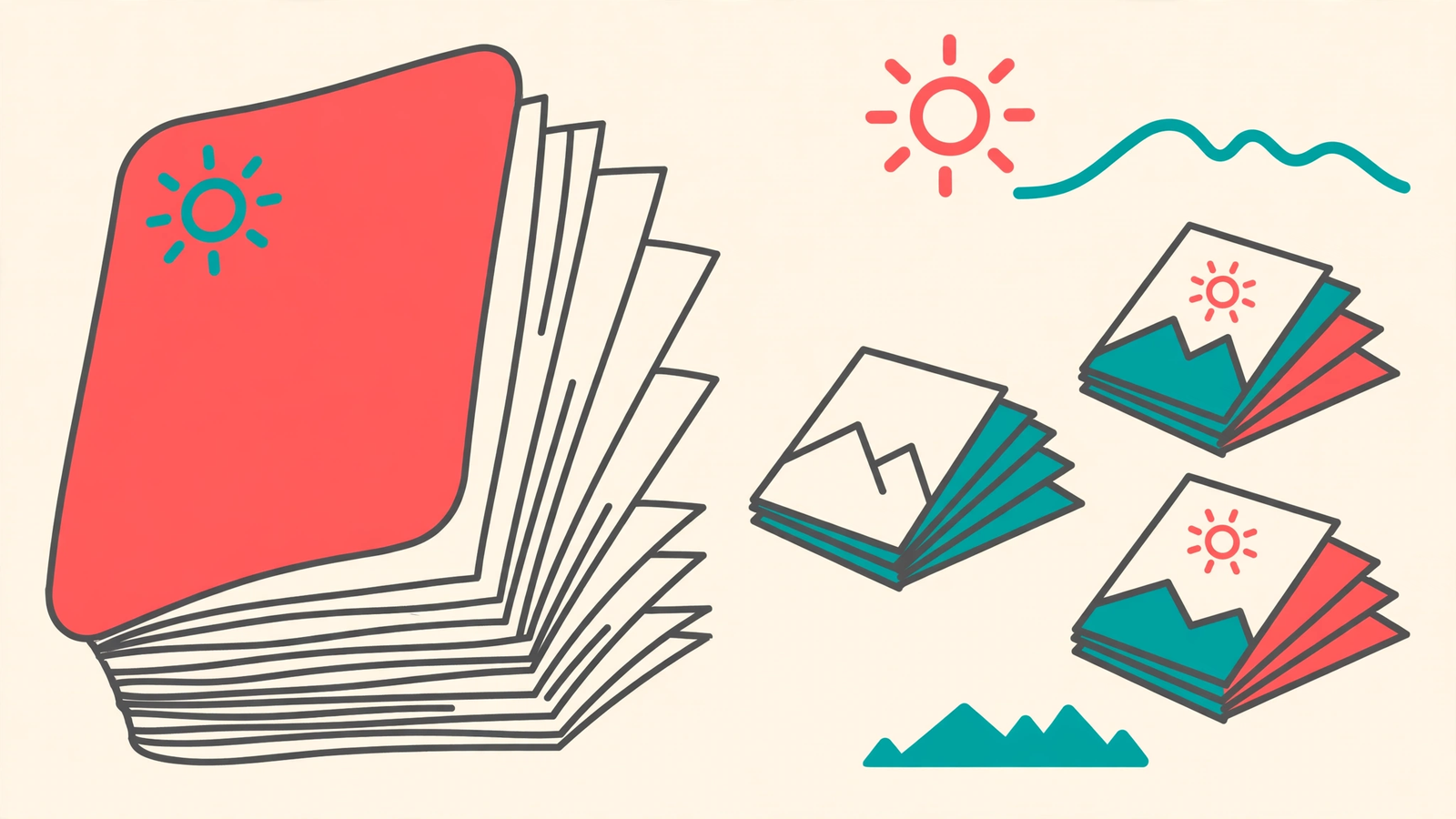
My younger brother rang me from a printing shop last month, and he was properly annoyed. His teacher had sent the whole class one big PDF. The complete course reader. All 214 pages of it. He only needed one chapter for his assignment, about sixteen pages somewhere in the middle.
The shop man had quoted him for printing the full book (per page, it adds up fast). So my brother did the sensible thing. He came home, ate two rotis, and then asked me if there was any way to print just his chapter.
There was. We split the PDF right there at the kitchen table, and the next morning he printed sixteen pages instead of two hundred and fourteen.
Why a PDF needs splitting at all
Files rarely arrive in the size we actually need. A teacher shares one reader for the whole term, but this week’s homework sits inside a single chapter. A bank or an office asks for just the first two pages of a long file, or the one signed page out of a scan, and they do not want the other forty pages with it.
Scanned bundles are the other classic. The scanning shop puts every paper into one heavy file, your ID card, your degree, your photos, all of it. Then the online form asks for each document separately, one by one.
And sometimes the file is simply too big to send. Nobody opens a sixty page attachment. The three pages that matter travel much better on their own.
How I split a PDF on this site
I use the Split PDF tool here on PDFQuora. It is our own site, so that is my small bias, stated openly. The honest reason I keep using it is simple. It opens in the browser, and I have never had to install anything or sign up for anything.
First, I open the page and drop the file in. On the computer I drag it with the mouse. On my phone I tap and pick it from the files. It works the same on both.
Then I tell it which pages I want. If I need one chunk, I type the range, like 88-104. If the pages I want are scattered, I type them like a shopping list, 1-3, 7, 12, and each part comes out as its own file. And if the file is a scanned bundle, I pick the option that turns every single page into its own document.
After that, I press the split button and wait a few seconds. A big book honestly takes less time than the shop printer took to warm up.
Then I download. One piece arrives as a single PDF. Many pieces arrive together in a ZIP file, and I just open it and take my pages out.
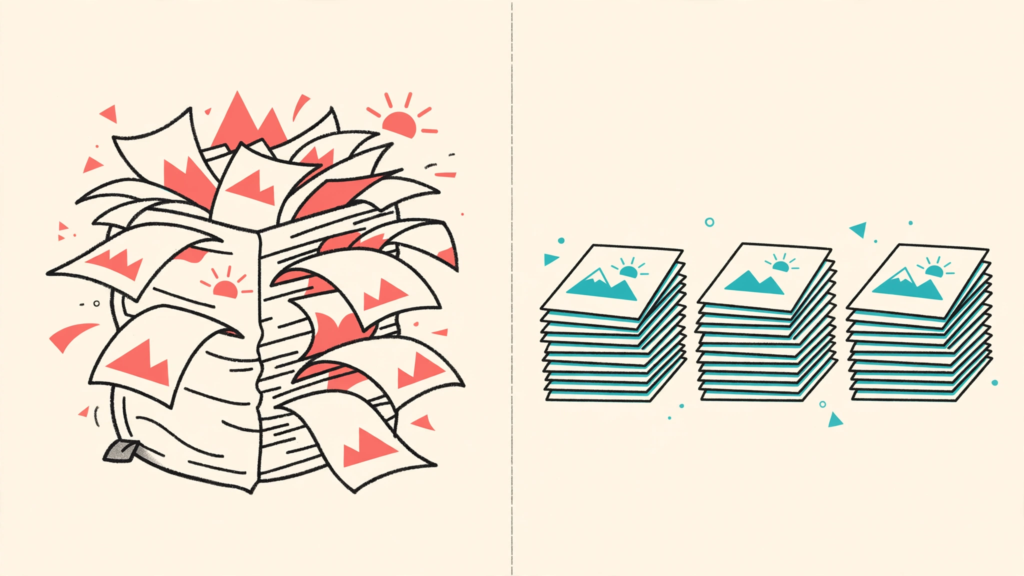
Before
A 214-page course reader to pay for at the printing shop, when only one chapter of about sixteen pages was needed
After
Just the sixteen pages printed instead of two hundred and fourteen, pages lifted out untouched
Mistakes I have made, so you can skip them
The page number trap got me first. The numbers inside a PDF are not always the numbers printed on the pages. My brother’s chapter began on printed page 88, but it was page 91 of the file, because the cover, the title page and the contents list were counted before it. We printed the wrong pages once (once was enough). Now I open the file first, scroll to the page I want, and read the number the viewer shows at the top. That number is the one to type.
The original file scare came second. The first time I split a document, I panicked afterwards. I thought I had cut my only copy into pieces. You have not. Splitting only makes new files, and the original sitting in your phone stays exactly as it was. Still, keep the original somewhere safe, and never do experiments on the only copy of an important paper. That habit has saved me more than once.
And name the pieces properly. “Chapter4-pages-88-104.pdf” is a file you can find next month. “split-final-final2.pdf” is a mystery you will open five times. Future you says thanks.
Your pages come out untouched
People worry that splitting will shrink their pages or make them blurry. It does not. The tool lifts the pages out as they are, so the words, the pictures and the print quality stay the same. A page that went in clear comes out clear.
That is the whole point, really. Same pages. Smaller file. Less nonsense.
Quick questions people ask me
Is it really free?
Yes. No watermark stamped on your pages, no daily limit stopping you halfway, and no card details asked for at the end.
Do I have to sign up?
No account and no password. Open the page and start.
Can I pick pages that are not next to each other?
Yes. Type them in a list, like 1-3, 7, 12, and each part arrives as its own file.
What if I want every page on its own?
Choose the option that separates every page. You get one ZIP holding a single file per page.
My file is huge. Will it still work?
Big course books are exactly what I use it for, and they split in seconds.
Is it safe for private papers?
Still keep your own copy in a safe folder, same as you would with any important paper.
And plenty of days the job sits the other way round. You have six loose files, and one stubborn form that wants a single PDF. I wrote those steps down too, in how to merge PDF files online for free, because our house keeps needing both jobs.
Try the free tool